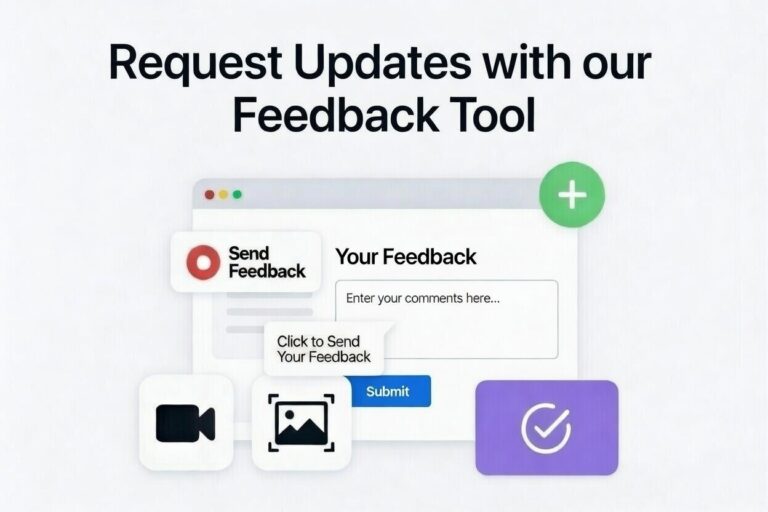

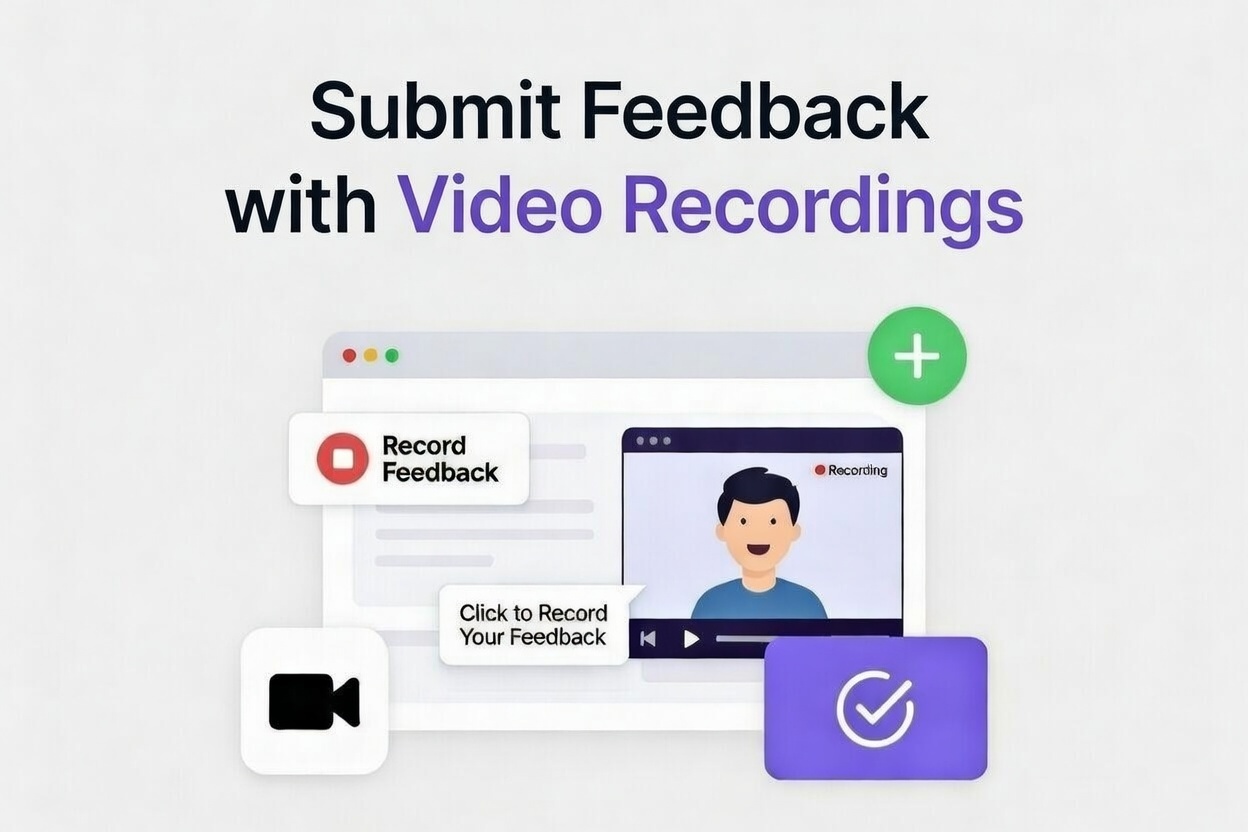
Hey there, website owner! If your site is powered by idahomepages, you’ve got access to our built-in feedback tool right on the screen. Beyond screenshots, you can record videos to show issues or ideas in action — like demonstrating a glitch or walking through a suggestion. This is great for more complex feedback. In this guide, we’ll cover the steps simply and friendly, just like talking shop with a neighbor. No tech overload — straight to the point so you can share your thoughts easily.
Why Use Video Recordings for Feedback?
Videos capture movement and sound, making it easier to explain things that screenshots can’t, like how a page loads or user flow problems. For idahomepages users, this tool is embedded in your site, letting you record without switching apps. Add your voice for extra clarity. Your recordings go directly to our support team, complete with context, and you get email updates. It’s efficient, secure, and helps us tweak your site faster.
Step-by-Step Instructions
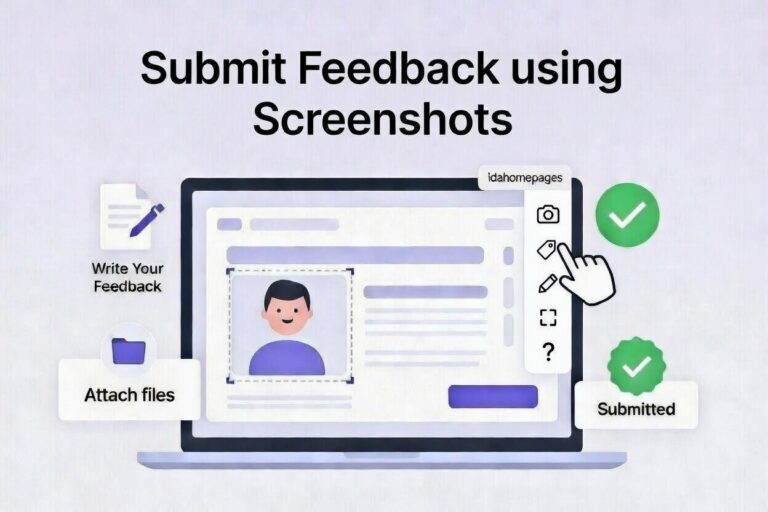
The toolbar should appear on the right side of your screen. If not, try refreshing or logging in again. Here’s how to submit video feedback:
- Open the Record Video Module: Click the camera icon in the toolbar on the right to get started.
- Start Recording: A toolbar will appear at the top of the screen. Click “Start recording” to begin.
- Allow Permissions: You’ll see a pop-up (maybe in a new tab). Click to allow screen sharing, which opens your browser’s permission window. If you want to add voice, allow microphone access first.
- Confirm Screen Share: In your browser’s native pop-up, approve sharing. Tip: Share only the current tab for the website you’re on to keep it focused.
- Get Ready to Record: After approving, you’ll be redirected back to your site (or go back manually if needed). A countdown from 3 to 1 starts the recording. Important: Don’t close any pop-up windows, or you’ll lose the recording!
- Record Your Feedback: Now recording, you’ll see controls at the top to pause or resume. Feel free to navigate around your site—the recording captures it all.
- Stop the Recording: When finished, click the “Stop recording” button.
- Preview and Submit: Watch your video preview. If it’s good, add a title, description if you like, and any attachments. Then hit “Submit.” Not happy? Click “Cancel” to start over.
That’s all — your video feedback is on its way!
Finding Help Docs
Need more guidance? Click the ? icon at the bottom of the toolbar on the right. It pulls up how-to info for video feedback, screenshots, viewing items, and notifications. Handy for quick tips anytime.
A Few Tips for Success
- Keep It Focused: Record only what’s needed—short videos (under a minute) are easiest to review.
- Use Voice Wisely: Adding audio can clarify, but speak clearly and test your mic first.
- Browser Check: This works best in modern browsers like Chrome or Firefox. If issues pop up, try another.
- Notifications: You’ll get emails on updates to your feedback. Manage them in your settings.
- Extra Help?: Toolbar not showing? Contact idahomepages—we’re ready to assist.
- Privacy First: Videos are secure and only viewed by our team to improve your site.
Video feedback makes communicating changes a breeze, cutting down on misunderstandings. Keep your Idaho-based business site sharp with this tool. If this helped, pass it along! Questions? Comment or reach out to idahomepages. Let’s make your web presence shine!